Read&Write Description
Read&Write is software with tools to help reading, writing, and studying.
Read&Write is installed on all Sites Macintosh computers. Due to networking issues with this version and the Mac operating system, you may be prompted for administrative passwords (click "cancel") or may not be able to use some features.
Installing Read&Write on a Personal Computer
Any current U-M student, faculty, or staff member may obtain a version of Read&Write for their personal Macintosh by doing the following:
- Download link for Read&Write Mac
- Run the downloaded read&write.dmg file. If you get a verification dialogue box, click Yes.
- As a final installation step, you will get a "Hi, almost ready to install" dialogue box. Click the Accept and Install button.
- If prompted, reboot the computer. After the reboot, the program will continue to install.
- The first time you run the program:
- If you had a previous version of Read&Write installed, you may be prompted to import any settings from the prior version.
- You will be prompted with several sign-in options. Choose Sign In with Google and then go through the usual sign in process for your university account.
Documentation
Read&Write Overview
Read&Write works directly with applications such as Microsoft Word and Web browsers.
Most functions are located in the Read&Write toolbar, which appears on the screen when Read&Write starts. The default toolbar looks like the following (you may need to click and drag the toolbar to the right to see all the icons):

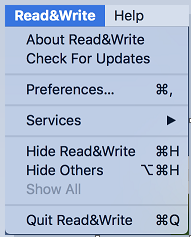
A Read&Write menu appears at the uppermost top left of the screen when Read&Write starts. When pulled down, the menu bar looks like this:
Short video tutorials for many Read&Write features are available on YouTube.
Default Toolbar Functions
This section describes the buttons that appear on the toolbar when Read&Write starts. If you change these defaults on public machines, note that your settings may not be saved.









Screenshot Reader. Allows user to capture text in any format and read it using Text Reader or from within Word. Useful for reading bitmapped (non-selectable) text or other text that cannot be accessed with the Play or PDF Reader functions.
To use Screenshot Reader:
- Click on the Screenshot Reader icon, and draw a box around the text you would like to read. Screenshot Reader will take a few seconds to analyze this text and will then start reading it aloud.
- You can use the standard Play, Pause, and Stop buttons to control this text.

Audio Maker. Converts highlighted text in Word docs and PDF files to an MP3, M4A, or AIFF audio file.
To use Audio Maker:
- For best results, highlight 4 pages of text or fewer, then click on the Audio Maker icon. The first page of the resulting dialog box previews the text you have chosen.
- Clicking on Next goes to a second screen allowing you to change and test settings for voice, speed, and volume. Then click on the “Create” button to generate the audio file.
- You will be prompted for the location where you want to save the file and the file format you wish to use. Click “Save” when done.

Scan. Options include whether to scan text to a Word, PDF or HTML file and specifications about the type of scanner being used. Even if you don't have a scanner attached, the Scan function can be useful for converting PDFs that were scanned as images into a text format. To use this functionality:
- Open Read&Write and click on the Scan button.
- The resulting window will look like this:
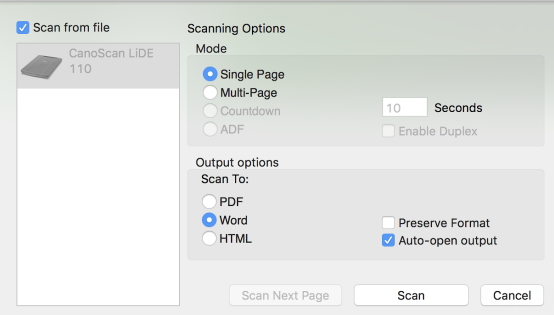
- Set up the window as follows:
- Click on "Scan from file" (upper left corner). If there is no physical scanner attached, this option will be selected automatically.)
- Click on "Multi-Page" (under Mode)
- Click on "Word" (under Output options)*
- Click off "Preserve Format" (under Output options)
- Click on the Scan button (bottom right). You will be prompted for a Word file name and location to save the document. You will then be prompted to open the document you want to scan.
- You may be asked to grant access to the Word file; it is fine to do so.
* If you are a U-M student and do not already own Microsoft Office, which includes Word, you may download MS Office it at no charge.








PDF Reader. Provides access to a program designed to read PDF files:
- Click on the PDF Reader icon, then select the file you would like to read. The PDF Reader window will open.
- A hand (
 ) will appear at the top left of the page. Select some text and then click on the hand. A purple strip will appear underneath it (
 ) and the program will start to read the text.
 - Use the Play, Pause, and Stop buttons on the standard toolbar to control the reading.
- If you wish to deactivate the reading feature (e.g., so it doesn't clash with the Highlighter), click on the hand so that the purple strip disappears.

Settings (keyboard shortcut: ⌘ + , [comma]) Allows options to be set for the following functions:
- Appearance
- Customize Toolbar (see "Additional Toolbar Options" below)
- Dictionary
- Web Search
- Screen Masking
- Screenshot Reader
- Similar Word Checker
- Speech
- Spelling
- Check It
- General
Additional Toolbar Options
The following features may be added to the Toolbar by choosing Settings from the Toolbar or Preferences from the Read&Write Menu. When the dialog box appears, choose "Customize Toolbar" on the left, and then check features on the right-hand list. (Existing features may also be unchecked.) Note that in the center of this dialog, there are options for customizing the look and functionality of the toolbar itself.