
Panorama is an accessibility tool in Canvas. Students can use Panorama to generate files in alternative formats. Panorama works with course files and files you upload yourself.
Format Options
Panorama works with file types including documents, PDFs, slides, Canvas pages, and more.
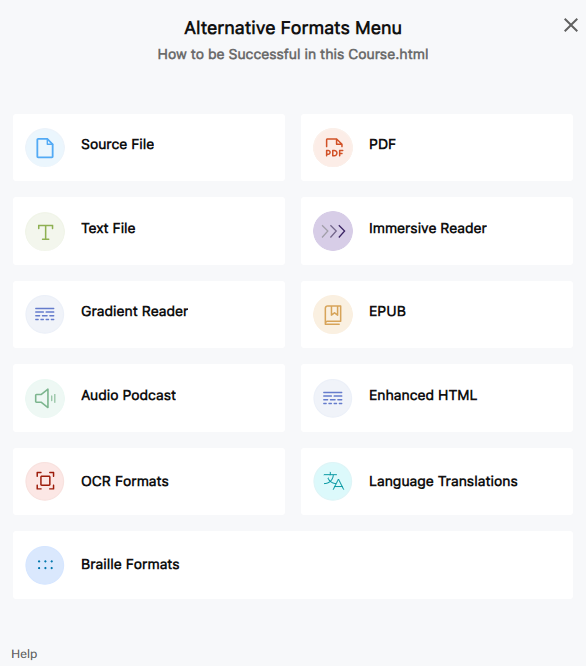
Panorama can convert files into a range of format options. These options include plain text file, audio podcast, immersive reader, braille formats, PDFs, EPUB, and more. Learn more about format options in Getting Started with YuJa Panorama for Students in Canvas.
Please note that alternative formats may look different than the original and may remove items such as images.
Course Content
When you log in to your Canvas courses, you will find the Alternative Formats icon in several places:
Next to files linked from Canvas pages
Select the Alternative Formats icon to open the conversion menu. This is called the Alternative Formats Menu. You will see a list of format options.
To generate an alterative format:
- Select the format you want
- Select Generate
- When the conversion finishes, select View to view the converted file in Canvas or Download to download the file.
DocHub for Your Files
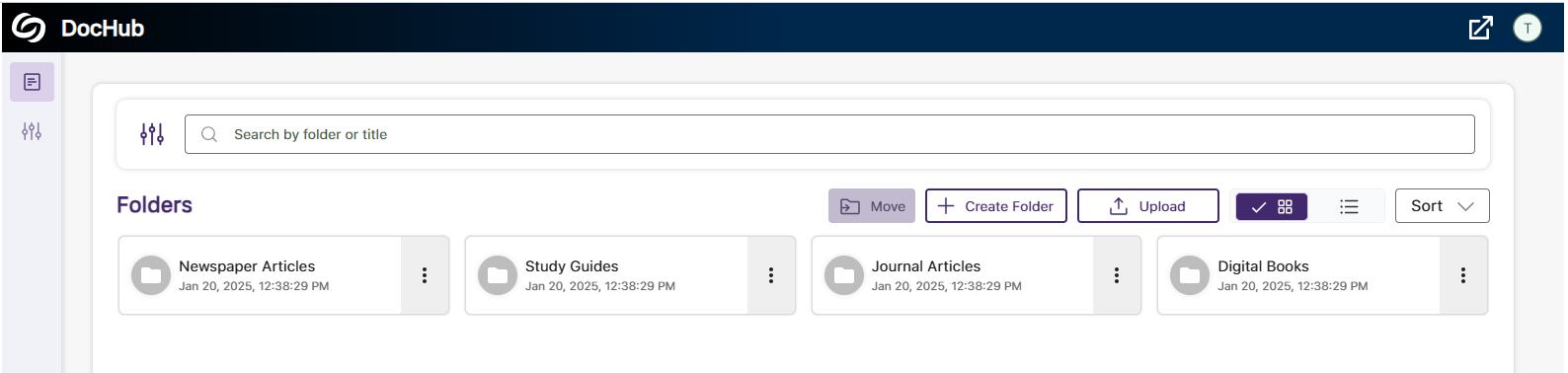
You can also upload your own files into a DocHub.
Documents you add here will not be shared to your courses, but will be available to you from within Canvas.
To use the DocHub:
- Go into any Canvas course
- In the course navigation, select Panorama
- In DocHub, select Upload
Selecting the file you uploaded will now open the Alternative Formats menu. You can then follow the same process as listed above.
More Resources
- Review all U-M ITS articles about Panorama
- Vendor resources
Get Help
For general questions about Panorama, please contact the ITS Service Center.
For additional support, please contact ITS Canvas Accessibility.